






Netdata AI can already troubleshoot your alerts and generate Insights reports. What it couldn’t do, until now, was have a back-and-forth conversation. You could get a one-shot analysis, but you couldn’t ask follow-up questions, pull in additional context, or go from a quick question to a full investigation without starting over.
We’ve added a conversational layer to Netdata AI. You’ll notice a new blue chat icon throughout Netdata Cloud, on charts, in the alerts table, on Insights reports, and in the reports list. Click it, and you’re in a conversation where the thing you clicked on is already the context. No copy-pasting metric names, no explaining what you’re looking at.
Chat with Insights reports
If you’ve used Netdata Insights to generate investigation reports, you know how dense they can be. They pack a lot of information into a structured analysis of what happened on your infrastructure over a given time window. That’s their job. But sometimes you want to ask a follow-up question, or you want to understand a specific section better, or you need to connect the dots between two separate reports.
Now you can do all of that conversationally.
There are two ways to start a conversation with a report. The most direct is to click the blue chat icon at the top of any open report, which immediately opens a conversation with that report as context. You can also start from the reports list view, where each report row has the same icon.

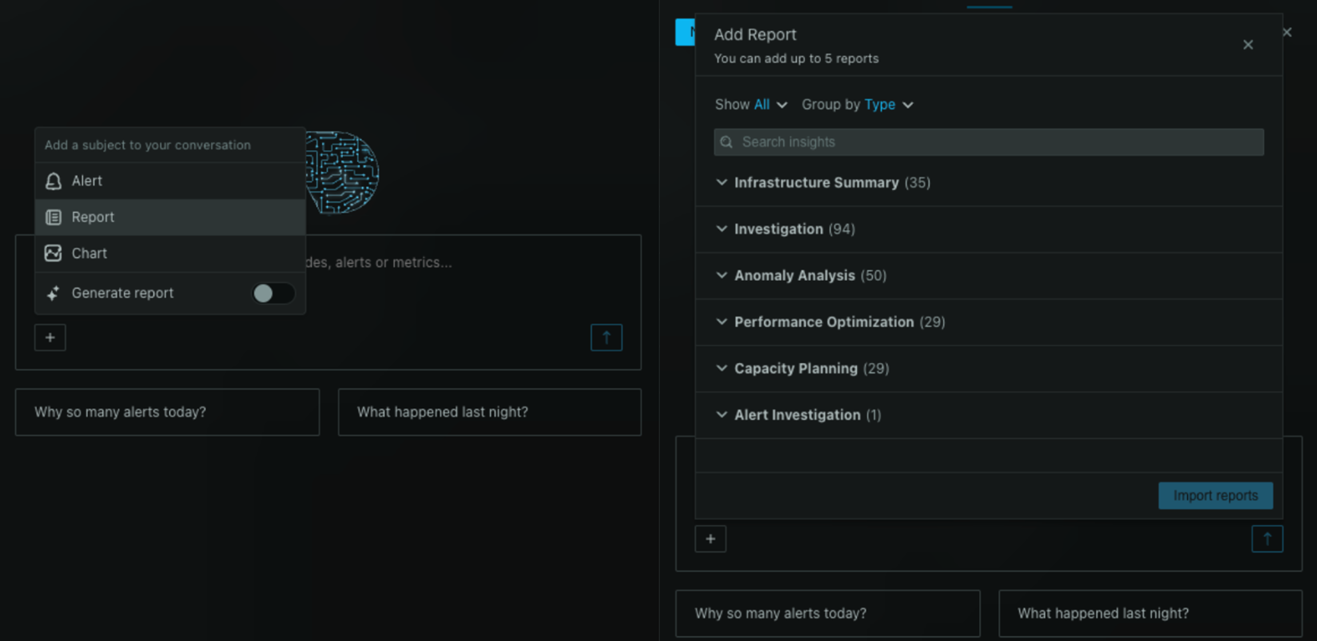
If you want to pull multiple reports into a single conversation (useful when you’re comparing incidents or tracking a recurring issue), you can do that from within the chat window itself. Click the + icon next to the chat composer, select Reports from the tools menu, and pick up to five reports to import. They’ll appear as subjects at the top of the conversation, and you can ask questions that span across all of them.

You can remove any imported report at any time by clicking the x on its tag. The conversation adapts to whatever context you’ve given it.
Chat with alerts
The same pattern works for alerts. You can select alerts from within the chat (using the same + menu), or you can start a conversation directly from the alerts table using the action buttons on any alert row.

This is particularly useful when you’re triaging. Instead of opening an alert, reading its definition, checking the metric, and then trying to figure out what changed, you can just ask. “Why did this fire?” or “What else was happening on this node at the same time?” or “Has this alert been flapping?” Netdata AI has the context of the alert and can pull in the relevant data to answer.

Kick off investigations from a conversation
Sometimes a conversation reveals that you need a deeper, more structured analysis than a chat can provide. Maybe you started by asking about a CPU spike and realized it’s connected to a broader pattern that needs a proper investigation.
Rather than leaving the chat to go set up an Insights report manually, you can trigger one directly from the conversation. Click the + icon, toggle on Generate report, and your next message will be treated as the starting point for a full investigation. A badge appears next to the composer so you know you’re in report mode.

Netdata AI may ask a few clarifying questions (time range, specific nodes, what you’re trying to understand) before generating the report, which gets delivered to your email. This means you can go from a casual “hmm, that’s weird” observation to a thorough investigation without ever switching context.
The blue icon is everywhere
The design principle here is simple: wherever you are in Netdata Cloud, if you’re looking at something and you have a question about it, you should be able to ask. The blue chat icon is your entry point, and it shows up on charts, alerts, reports, and more. Think of it as a universal “explain this to me” or “help me investigate this” button.
We find that this is especially valuable for teams where not everyone has the same depth of Netdata experience. The person on call at 3am shouldn’t need to be the team’s Netdata expert to understand what an alert means or what a report is telling them. They can just ask.
AI credits consumption
Conversations consume AI credits based on the complexity of your questions and the amount of context involved. As with all Netdata AI features, you get 10 monthly complementary credits on a Business subscription, and you can top up based on your needs. Free trial users also get 10 credits to experiment with.
Try it out
These conversational capabilities are available now for all users on a Business plan or free trial. Look for the blue chat icon across Netdata Cloud, or open the chat panel and use the + menu to import reports or alerts as context.
We think the most interesting thing about this feature isn’t any single capability, it’s the workflow it enables: see something, ask about it, go deeper if needed, all without losing your train of thought.