








If you’ve ever opened the alerts tab during a busy period, you know the problem. There are alerts you’ve already looked at, alerts someone on your team is handling, and alerts that fired on a known issue that’s being worked on. They all sit together in the same list alongside the new ones you haven’t seen yet. There’s no way to say “I’ve seen this, move on” without silencing or disabling the alert entirely, which is a much heavier action than the situation calls for.
Alert acknowledgement fills this gap. You can now mark any alert as acknowledged, which removes it from the default active alerts view. The alert isn’t silenced, and it isn’t disabled. It’s just moved out of the way so you can focus on what still needs attention.
This is probably THE most requested feature request from the recent past, and we’re happy and relieved we’ve finally got here (and we’re sure you are to).
How it works
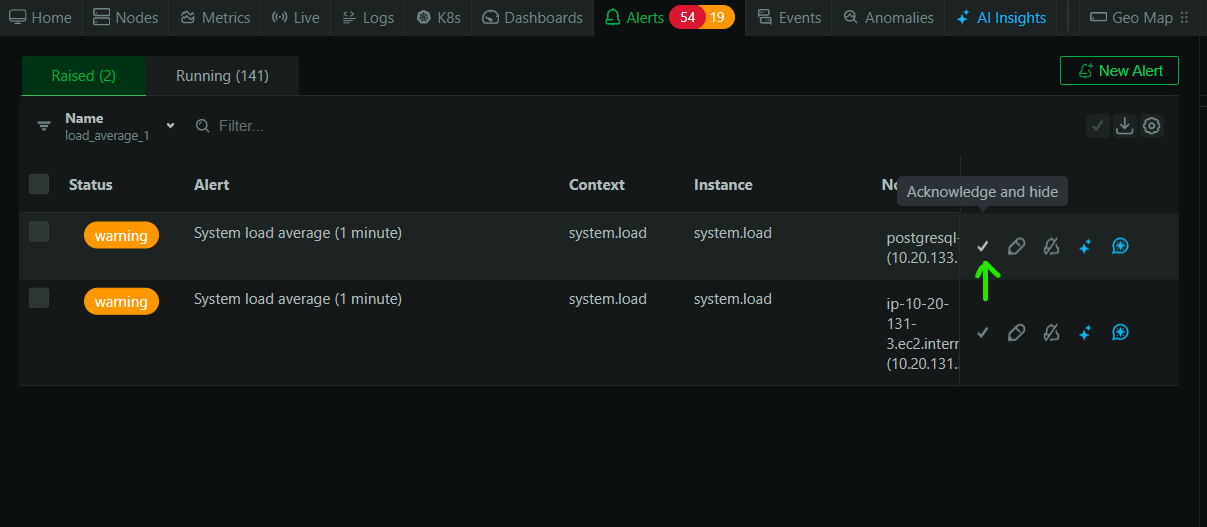
From the alerts table, you can acknowledge individual alerts or select multiple alerts and acknowledge them in bulk. Once acknowledged, the alert disappears from the standard view.

If you want to see your acknowledged alerts again, there’s a checkbox that brings them back into the list. This is useful for reviewing what’s been triaged, checking whether something you acknowledged earlier has been resolved, or handing off context during a shift change.

The important behavior here is that acknowledgements are not permanent. If an acknowledged alert changes state (it escalates from warning to critical, or it clears and then fires again), the acknowledgement expires automatically and the alert reappears in your active view. This means you can’t accidentally bury something that gets worse. Fresh state changes always surface, even on alerts you’ve previously acknowledged.
When to use it
The most obvious scenario is during incidents when the alerts tab is full of entries that your team is already aware of and actively working on. Acknowledging them cleans up the view so on-call engineers can see new alerts as they come in.
It’s also useful for known issues. If a disk on a non-critical node has been running hot for a week and you’re waiting on a hardware replacement, you can acknowledge that alert and stop seeing it every time you check the alerts tab, without disabling the alert definition itself. If the disk situation gets worse, the state change will bring it back.
This feature is available now for all users on a Business plan or free trial.